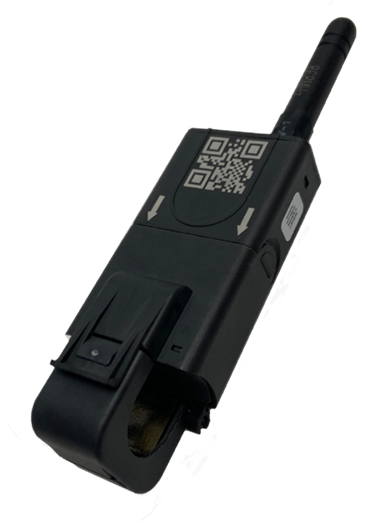
For the CT 300, use App Port (fPort) 3 for all downlink hexcodes
Device Reboot (Soft Reset).
Generated Hexcode:
Factory Reset.
Generated Hexcode:
Transmit Interval
Generated Hexcode:
Measurement Interval.
Generated Hexcode:
Low Power Threshold (Volts)
Generated Hexcode:
Default Settings
Transmit Interval : 1 Minute
Measurement Interval 1000 miliseconds
Low Power Threshold: 3.4 volts
Soft Reset Information
This will initiate a software reset, causing the device to rejoin the LoRaWAN network.
Factory Reset Information
This will initiate a factory reset. Accumulated amp-hours and configuration will be set to initial values and the device will reboot.
Measurement Interval Information
The MTCT300 spends the majority of its time harvesting power and transitions to high-resolution measurement on a periodic interval.
Higher resolution data can be achieved by reducing the measurement interval at the cost of greater power requirements and an increased minimum circuit current to maintain full power state on the MTCT300.
It is highly recommended to leave this value at the default configuration.
Transmit Interval Information
The interval between data packets can be configured to reduce the frequency of updates.
Reducing the interval increases power requirements and the minimum circuit current necessary to maintain full power state on the MTCT300. Increasing the transmit interval results in a longer rolling window for averaged current values.
Low Power Threshold Information
The low power threshold determines when a MTCT300 transitions to increased measurement and transmit intervals to conserve power. This extends the operating region of the device.
Decreasing the low power threshold causes the device to remain in full operation longer, but will result in a rapid shutoff once circuit current falls below the minimum required to sustain full operation.
It is highly recommended to leave this value at the default configuration.
How to Use Hexcode
1. Copy the generated hex string.
2. Paste it into your LoRaWAN server or gateway downlink tool. For MultiTech gateways, open the gateway's mPower web interface, choose LoRaWAN, Downlink Queue. Choose Add New, Enter 3 in the App Port field then paste the hexcode into the Data input box. Set Ack Attempts to 1 and Rx Window to 1.
3. Send the downlink to your RadioBridge sensor.
4. The sensor applies the configuration the next time it sends an uplink.